
Getting started
Explore the shared world, build your first small garden, and share a place. A practical guide to choosing tiles and working with blocks in Tilemori.
1. Explore before you build
Tilemori is a shared map of 16 connected regions. Open it in a desktop or mobile browser without installing an app. You can explore landscapes and inspect blocks without signing in. Select the region name to choose another region.
Drag to move the map. Use the mouse wheel on a computer, or pinch with two fingers on mobile, to zoom. Rotate to see behind structures and use top view to check paths and floor patterns. Inspecting a tile in browse mode does not change it.
2. Start in a small clearing
Sign in with Google to change blocks, then select “Work in this region”. Choose a block and a tool after the center tile is selected. Start in a small empty space away from other people’s paths and buildings.
On desktop, move the selection with WASD or the arrow keys and apply with Space or Enter. You can also click individual tiles. On mobile, position the selection with the directional buttons, then use the action button. Entering work mode or choosing a block does not use actions.
3. Learn the three tools
The tool determines whether you change a tile’s height or its surface. Try one tile at a time first.
- Build adds one layer of the chosen material. Use it for walls, steps and raised borders.
- Dig removes the top layer. Use it to lower a tile or remove an unwanted block.
- Replace changes the top material without changing the height. Use it for paths and floor patterns.
4. Your first project: a garden and path
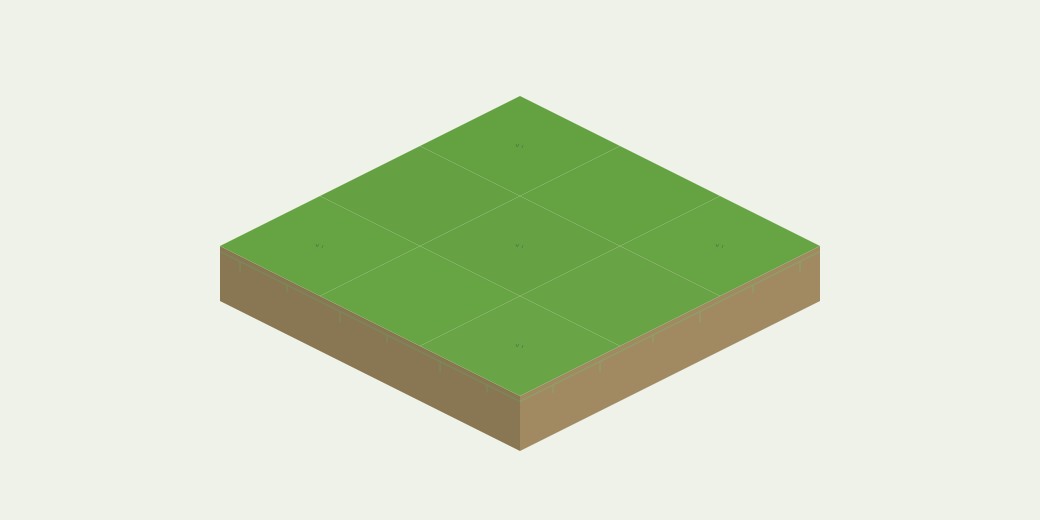
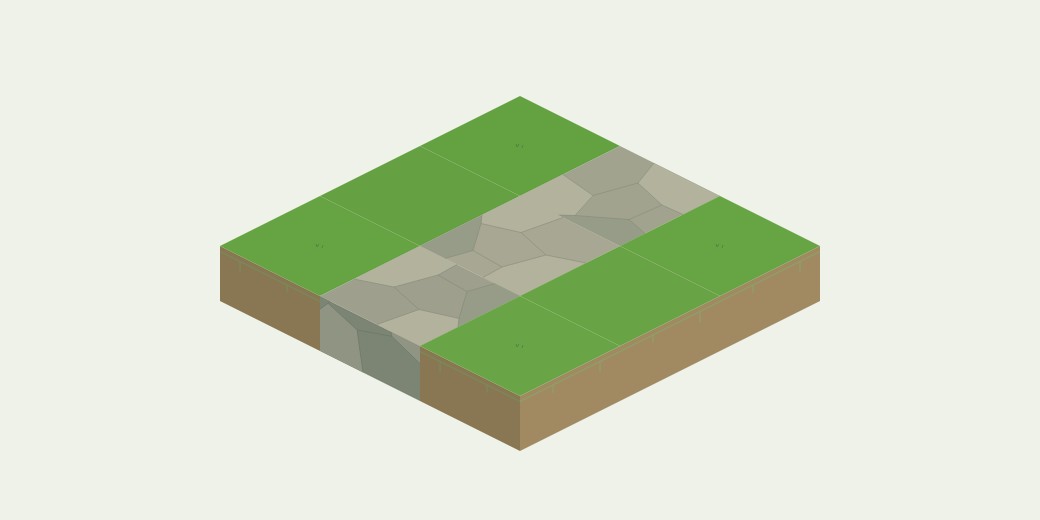
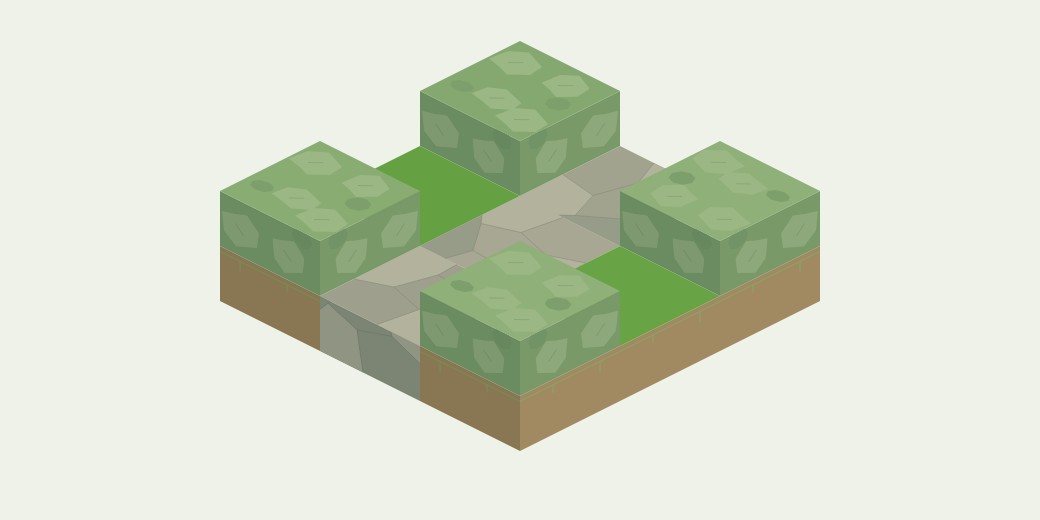
Use Grass, Cobblestone and Light leaves to make a floor, a short path and low borders in a 3×3 clearing. The illustrations show the building stages with surrounding terrain omitted. They are layouts of an example, not photographs of a specific place in the live world.
① Prepare the floor: replace with grass
Choose an empty, level 3×3 patch. Select Replace and choose Grass in the block picker, then apply it to the nine tiles. Leave tiles that are already grass as they are. Replace keeps their height, making it useful for a level garden floor.
② Make a path: replace the middle three tiles
Keep Replace selected and change the material to Cobblestone. Apply it to the middle row of three tiles, leaving the path open at both ends. On desktop, move with the arrow keys and apply with Space or Enter. On mobile, use the directional buttons and the action button. If a tile becomes taller, undo it and select Replace instead of Build.
③ Finish the border: build leaves at the corners
Choose Light leaves and switch to Build. Add one layer to each of the four corners. Replace changes the floor pattern; Build adds height like a low hedge. Keep the path entrances clear. Return to browse mode to inspect the result. If a corner is too tall, Dig removes its top layer.
5. Preview larger changes
Use the area control after you are comfortable with single tiles. A rectangle uses two corners and can be up to 5×5 tiles; a line uses two endpoints and can be up to 16 tiles long. The 3×3 area is available for Replace.
Check the highlighted area before applying it. You can also press Enter on desktop. Use the material picker on an existing block to select its material without using actions.
6. Actions and undo
Basic actions recharge for free at one tile every 5 seconds, up to 300 tiles. Only tiles that actually change use actions. A larger edit can use several actions, so start with a small area.
Undo can restore your previous operation without an extra action cost. It does not refund the actions spent on that operation. Later changes made by someone else are protected, so not every operation can always be undone.
7. Share and care for the world
Select a tile in browse mode and choose the sharing control to copy a link to that location. “New scenery” helps you find recently changed places. Sign in to leave a note of up to 60 characters at a chosen spot; notes do not use actions.
Edits are saved and visible to other people. Respect existing creations and check the surrounding area before making a large change. Use the location’s report control to flag a problematic edit.